
Please enter a keyword
Use LINE Delivery (step messages and broadcasts)
Send tailored step messages and targeted broadcasts to friends acquired through ads via your LINE Official Account. Create, approve, send, and review scenarios.
Author: Cascade
LINE Delivery lets you send messages from Cascade to your LINE Official Account friends. Open Customer Management > LINE Delivery from the left menu. Step delivery sends a sequence of messages at set intervals after a friend add. Broadcasts sends a one-time message to selected recipients. Combined with friend-add tracking, you can tailor the messages to each source ad.
What you can do
Feature | Description |
|---|---|
Step delivery | Automatically send messages to friends added through tracking links based on the number of days since they added you. You can create separate scenarios for each source ad or campaign. |
Broadcasts | Send a one-time message to friends added through tracking links or to recipients filtered by attributes such as gender and age. |
Templates and AI drafts | Start with one of 6 templates. Select a source campaign to draft messages based on its ads and landing pages. |
Delivery status | Check sent, scheduled, failed, and click counts for each step, along with each friend's progress. |
Requirements
Available on the Business plan.
Owners and Admins can create, approve, and send scenarios and broadcasts. Viewers can view the content and delivery status.
Connect your LINE Official Account to analyze friend growth (required).
Step messages and broadcasts filtered by source target friends added through tracking links configured with Set up friend-add tracking (see which ads brought new friends). To reach friends added through other routes, such as QR codes, use broadcasts with By attributes.
Delivery uses your LINE Official Account's message quota. Keep your LINE plan's limit in mind.
Steps for step delivery
1. Create a scenario
Click Create scenario on the Step delivery tab. Select a template (Welcome new friends, Encourage first purchase, How-to and tips guide, Ask for reviews, Re-engage dormant friends, or Campaign announcement), or select Start from scratch.
Field | Description |
|---|---|
Scenario name | A name for internal use (up to 100 characters) |
Source filter | The friend-add source to target. Choose All friend adds, All via [Ad Platform], or [Ad Platform] / Campaign Name. The number of friends for each source appears. |
Delivery settings | Turn on Track link clicks to convert links in your messages into tracking links and record who clicks them in the delivery status. |
Delivery steps | Up to 10 steps. For each step, set Days after add (0–60 days; 0 is the day the friend adds you) and Send time (an hourly time slot). Choose Text or Image (JPEG / PNG, 10MB or less). Text is limited to 5,000 characters. You can add a Tap Destination URL to an image. The {name} placeholder in your message is replaced with the recipient's display name. |
Send condition | From step 2 onward, you can filter recipients by Only Those Who Clicked Step X, Only Those Who Did Not Click, Purchased only, or Not purchased only. |
After selecting a source campaign, click Redraft the messages from this source's ads & landing pages to create drafts based on ads that ran in the past 30 days and their landing pages.
Use Test send to send the message to your own LINE account for review. The recipient user ID is 33 characters long and starts with "U". You can find it under Your user ID in the Messaging API tab of the LINE Developers console.
When you finish entering the details, click Create to save a draft, or Create and approve to proceed directly to approval.
2. Approve and start delivery
A saved scenario has the status Draft. Click Approve and start delivery in its details, review the content, and approve it to change the status to Active. Messages are automatically sent to eligible friends at each step's send time. Sent messages cannot be recalled. If you change the message text, you need to approve it again.
If another active scenario has overlapping recipients, a warning appears during approval. Friends who match both scenarios receive only the scenario with the more specific source conditions. Up to 20 scenarios can be active at the same time.
3. Manage delivery
The list shows the scenario name, status (Draft / Active / Paused), number of steps, source, and last updated date and time. Only drafts can be edited. For an active scenario, click Stop in its details before editing or deleting it. To resume a paused scenario, click Approve and start delivery.
The Delivery status tab in the details shows sent, scheduled, failed, click, and skipped counts for each step, along with each friend's progress (Not sent / Sent Through Step X / Has failure). Reasons for skipping are daily cap, quota shortage, condition not met, and purchase check unavailable.
Deleting a scenario also deletes its scheduled and sent message records, and tracking links in previously sent messages no longer open.
If a source has many friend adds in the past 30 days but has not received messages, "Sources without a scenario" appears at the top of the screen. Click Create from template to create one right away. The same information also arrives every Monday morning in the "LINE delivery suggestions📬" notification through Slack, Chatwork, or Microsoft Teams.
Steps for broadcasts
1. Create a broadcast
Click Create broadcast on the Broadcasts tab. Enter a broadcast name (up to 100 characters), recipients, and message text (up to 5,000 characters; {name} is not supported).
Recipient selection | Description |
|---|---|
Friends added via tracking links | Filter by source (ad platform and campaign) and friendship duration. You can estimate the recipient count precisely. |
By attributes | Filter by gender, age, OS, region, and friendship duration. This also includes friends added before you connected the account. The recipient count is approximate because LINE estimates these attributes. |
Under Delivery estimate, click Refresh estimate to check the recipient count and the remaining message quota for the current month and day. You cannot send to fewer than 50 recipients because of LINE's minimum audience requirement.
2. Approve
Click Approve to finalize the recipients and message text. You cannot change the content after approval. To make changes, create a new broadcast.
3. Send
Click Enabled in the details to start sending. The status progresses from Draft to Approved, Active, and then Sent (or Failed). The Result column in the list shows the successful and failed counts.
Review performance
Check responses to step messages under Delivery status in the scenario details. Under Customer Management > CRM Analytics, LINE message delivery shows the number of messages sent, users who opened them, and users who clicked for a selected period. Lead details in Attribution show LINE delivery status, so you can track each ad's friend acquisition through to responses after delivery.
Troubleshooting
Symptom | Cause | What to do |
|---|---|---|
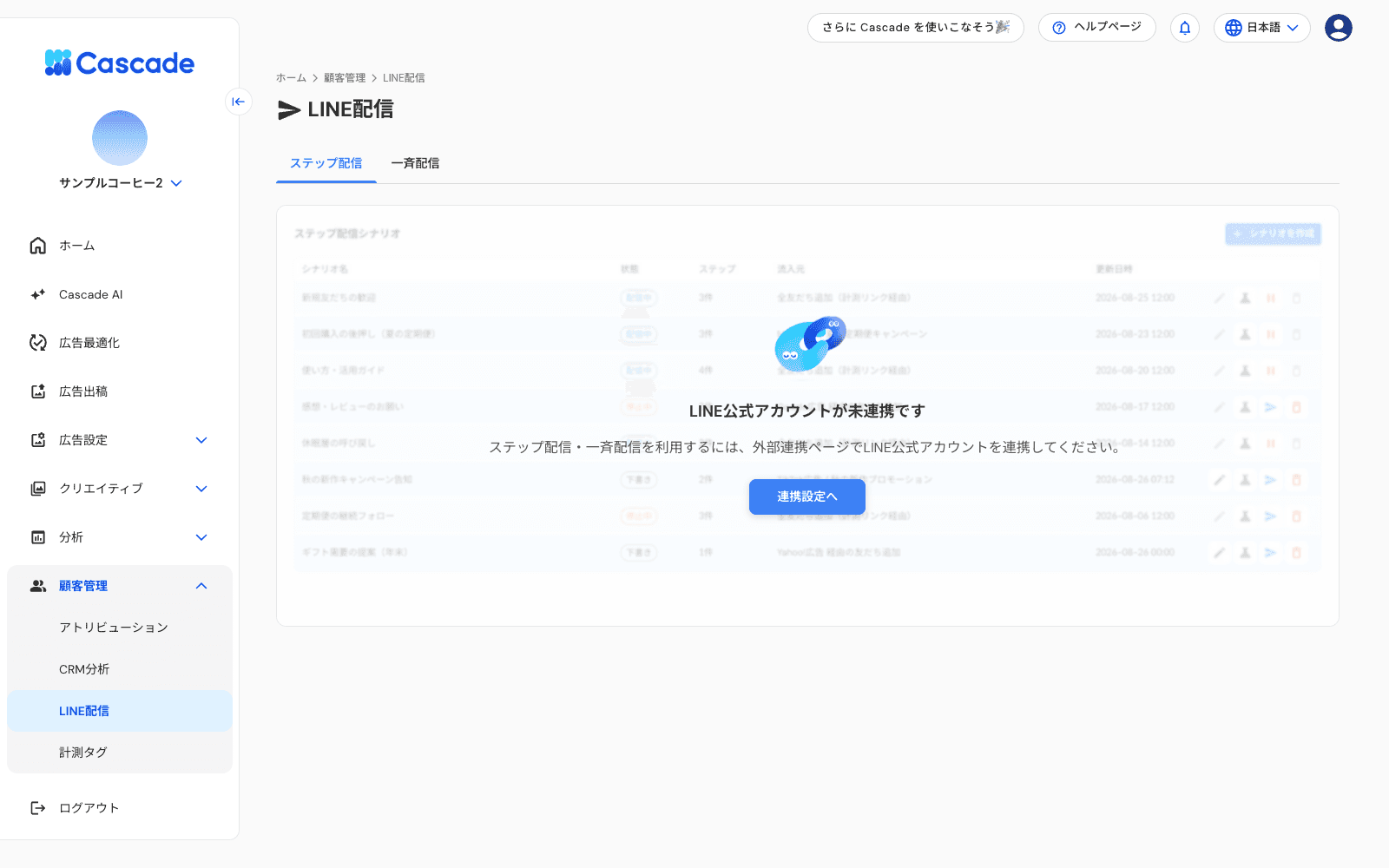
"LINE Official Account Not Connected" appears. | Your LINE Official Account is not connected. | An Owner or Admin needs to connect it under Settings > Integrations. |
"No friends from ads yet" appears in the source list. | No friends have been added through tracking links yet. | Set up friend-add tracking (see which ads brought new friends), then add tracking links to your ads and landing pages. |
"Today's sending limit has been reached" or "Insufficient message quota for this month" appears. | You have reached LINE's message limit. | Send the messages the next day or later, or check your LINE Official Account plan. The reason also appears under Skipped in the delivery status. |
"Cannot send because there are fewer than 50 recipients" appears for a broadcast. | The audience does not meet LINE's minimum size. | Broaden your recipient filters. |
"Cannot send because the content has changed since approval" appears. | The message text or recipients changed after approval. | Approve it again before sending. |
You cannot edit a scenario. | Active or paused scenarios cannot be edited. | Click Stop, edit the scenario, and approve it again. |
Related articles
More articles in this category
