
Please enter a keyword
Set up the Qoo10 integration (issue a Certification Key)
Learn how to get a Certification Key in QSM (about 5 business days), how it differs from an API ID, and how to connect Qoo10 and fix common errors.
Author: Cascade
Connect Qoo10 to use Sales, Items, and Catalog with your order data. Supported features include Sales Trend, bestsellers, Product ABC Analysis, sales trends by item, bundle purchases, customer analysis, inventory, and settlements (fees). Connect from Settings > Integrations in the left menu.
The connection uses a Certification Key issued in QSM (Qoo10 Sales Manager). You do not need to enter a password.
Prerequisites
Integrations and EC Analysis are available on the Business plan.
You need the Owner or Admin role for the product to connect.
You need your QSM login ID (seller account ID).
You need a Certification Key issued in QSM (a long string of about 150 characters).
You can connect 1 Qoo10 account to each product.
Issue a Certification Key in QSM
1. Open Issue / View API ID in QSM
Sign in to QSM and open Issue / View API ID from the left menu. If you cannot find it, look under Basic Information > My Information.
2. Request a key
Enter "Cascade" in API Integration Company Name and request a key.
3. Wait for approval (about 5 business days)
Approval takes about 5 business days after you request a key. You do not receive a notification when it is approved, so check the same screen after a few days. The key is invalid before approval, and pasting it results in an error.
4. Copy the Certification Key
After approval, 2 values appear on the same screen: API ID and Certification Key.Use the Certification Key (a long string of about 150 characters) to connect to Cascade.Copy it exactly as displayed.
Steps
1. Click Connect on the Integrations page
Open Settings > Integrations and click Connect in the Qoo10 row under Commerce Integrations.
2. Enter your login ID and Certification Key

The Connect Qoo10 screen opens. Enter your Seller account ID (QSM login ID) and Certification Key, then click Connect. If the value you enter is too short, a warning appears below the input field. Setup is complete when "Connected to Qoo10." appears.
3. Open EC Analysis
Open EC > Sales in the left menu to view sales and customer data. View analysis for individual products under EC > Items.
Order data is imported once every day in the early morning. The first import goes back up to 2 years, so it may take several hours depending on the number of orders. Order corrections, such as cancellations, are applied by retrieving the last 35 days of data again.
Available data
Sales Trend (EC > Sales).
Customer analysis (LTV, repeat purchases, and F2 conversion rate) (Sales).
Settlement & fee breakdown: View deposits and estimated selling fees based on Qoo10 settlement amounts (Sales).
Bestseller rankings, Product ABC Analysis, and sales trends by item (EC > Items).
Bundle Purchase Ranking (frequently bought together) and inventory (Items).
Catalog (gross margin settings) (EC > Catalog).
Traffic Channel Analysis and Returns & Refunds Analysis are not supported for Qoo10.
Update your Certification Key
Cascade recommends updating your Certification Key about 1 year after connecting. As that time approaches, "Renewal due in [X] days" appears in the Notices column. After that date, Key renewal recommended appears. This is a guideline for annual renewal, not a prediction of when the key will expire.
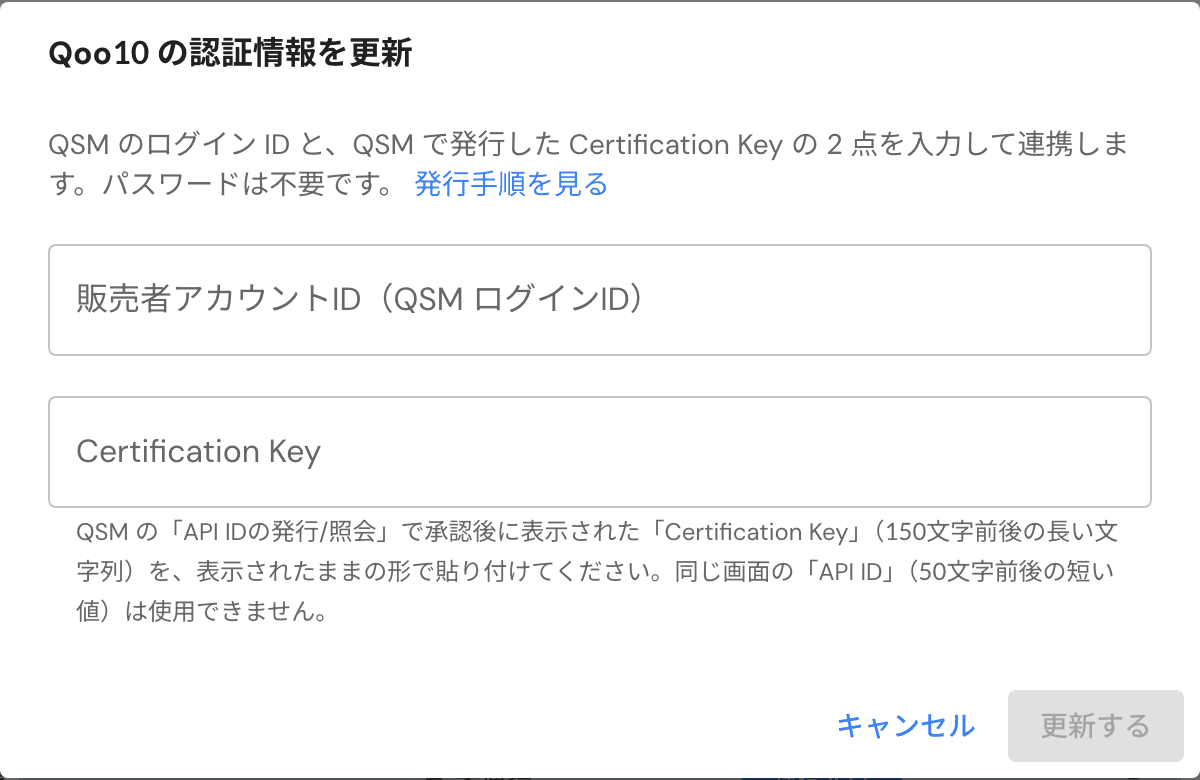
Issue a new Certification Key in QSM, then click Update key in the Qoo10 row. On the Update Qoo10 credentials screen, enter the same login ID as the connected account and the new Certification Key, then click Update. The update is complete when "Qoo10 credentials updated." appears. Your existing connected data is retained.
If the Certification Key becomes invalid, Authentication error appears in the row, and sales data sync stops. Reissue the key in QSM and paste it using Update key.
Disconnect
Under Settings > Integrations, click Disconnect in the Qoo10 row. The message "Disconnecting prevents access to data from the connected account and limits the reports and data you can view." appears. Confirm and continue. To switch to another Qoo10 account, disconnect first, then reconnect.
Troubleshooting

Symptom | Cause | Solution |
|---|---|---|
The message "The value you entered appears to be shorter than a Certification Key." appears. | You pasted the API ID, a shorter value of about 50 characters on the same screen. | Paste the Certification Key of about 150 characters, rather than the API ID. Even if you use the API ID with other tools, it cannot be used with Cascade. |
The message "The Certification Key could not be verified." appears. | You pasted a key that has not been approved, has expired, or was replaced by a reissued key. | Allow about 5 business days for approval after requesting a key. If you reissued it, paste the key currently displayed in QSM. |
The message "The login ID you entered does not match the connected account." appears. | You entered a different login ID when updating the key. | Enter the connected account's login ID. To switch to a different account, disconnect first, then reconnect. |
The message "This product is already connected to another Qoo10 account." appears. | This product is connected to another Qoo10 account. | Click Disconnect to disconnect, then reconnect. |
The message "Updating credentials requires the owner or admin role for this product." appears. | You do not have permission to perform this action. | Ask the product Owner or an Admin to perform the action. |
The message "Qoo10 is currently busy." appears. | Qoo10 is temporarily experiencing high traffic. | Please try again later. |
The message "Failed to connect to Qoo10." appears. | A temporary issue occurred. | Please try again in a moment. If the issue persists, contact support. |
Authentication error appears, and sales data does not update. | The Certification Key has become invalid (expired or reissued). | Reissue it in QSM, then paste the new key using Update key. |
Data does not appear after connecting. | The first import is in progress (up to 2 years of data). | Check again in a few hours. |
Related articles
More articles in this category