
Please enter a keyword
What is keyword analysis?
Learn how to use Cascade's keyword analysis to review ad performance on Google and Yahoo!, then add or update keywords directly in your media campaigns.
Author: Cascade
Using Keyword Analysis
With keyword analysis, you can check the performance of keyword advertisements on platforms like Google and Yahoo!, and directly reflect the addition of keywords to the media. Since analysis and improvement can be completed on a single screen, it can reduce the effort required for the operation of keyword advertisements.
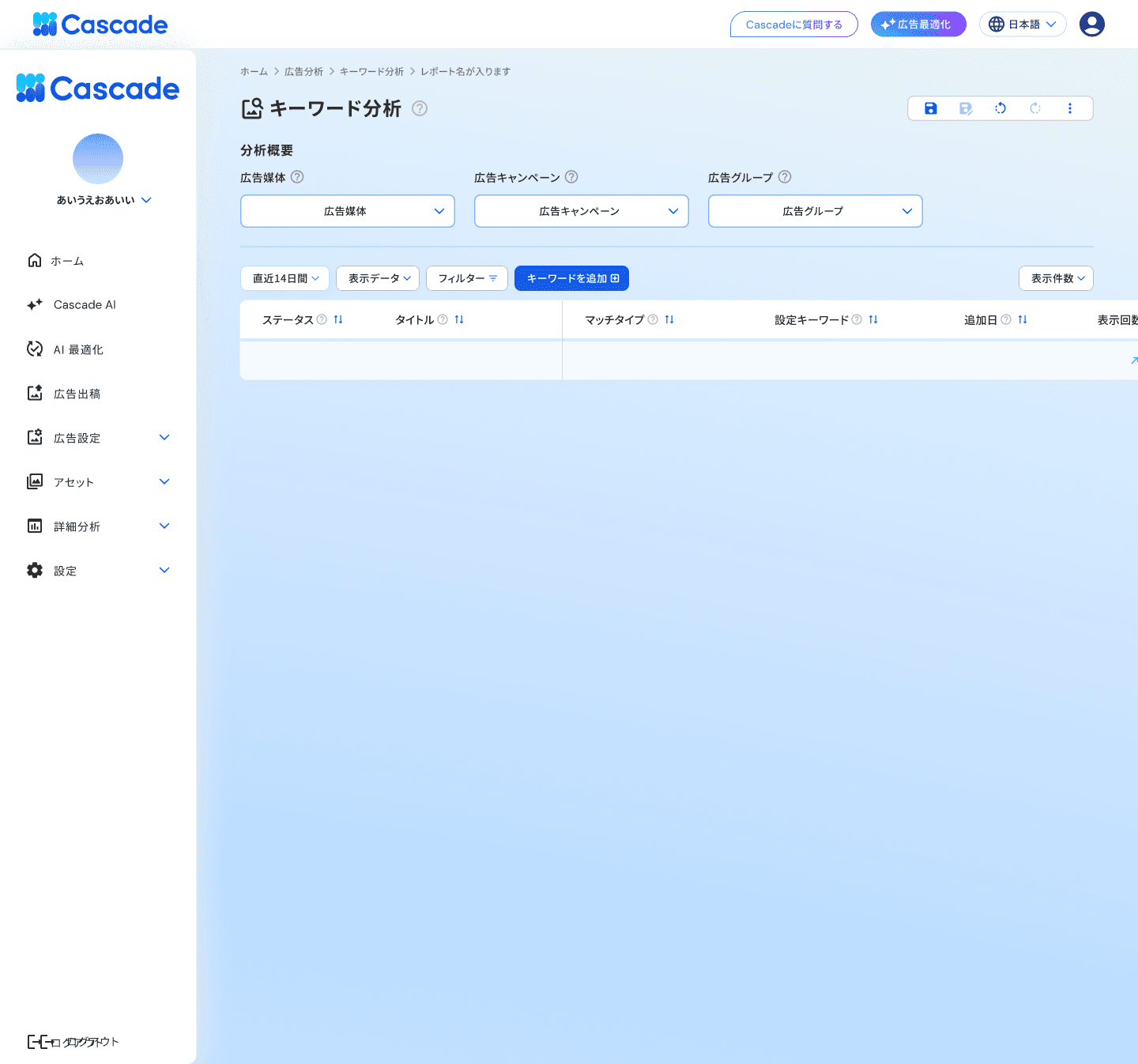
Check the performance of keywords
1. Select the media you want to check in [Advertising Media]
You can choose from the following media with keyword advertisements.
Google
Yahoo
TikTok
Amazon
2. Choose [Advertising Campaign] and [Ad Group]
Campaigns and groups associated with the selected advertising media will be displayed in a list.
3. Check the performance of keywords
A list of keywords corresponding to the selected conditions will be displayed. You can check the following metrics.
Item | Content |
|---|---|
Status | Keyword delivery status |
Title | Keyword title |
Match Type | Match types such as intent match and exact match |
Set Keyword | Keywords that are being submitted |
Added Date | Date the keyword was added |
Impressions | Number of times the advertisement was displayed |
Top Impression Share | Percentage displayed at the top of search results |
Advertising Cost | Total advertising costs incurred |
CPM | Cost per 1,000 impressions |
Cost Per Click (CPC) | Cost per click |
Clicks | Number of times the advertisement was clicked |
Click Through Rate (CTR) | Percentage of clicks relative to impressions |
Number of Conversions | Number of conversions that occurred via the advertisement |
Conversion Value | Total amount associated with conversions |
ROAS | Ratio of sales to advertising costs |
Manually Add Keywords
1. Press [Add Keywords]
The "Add Keywords" dialog will be displayed.
2. Enter keywords in the text area on the left and select the match type
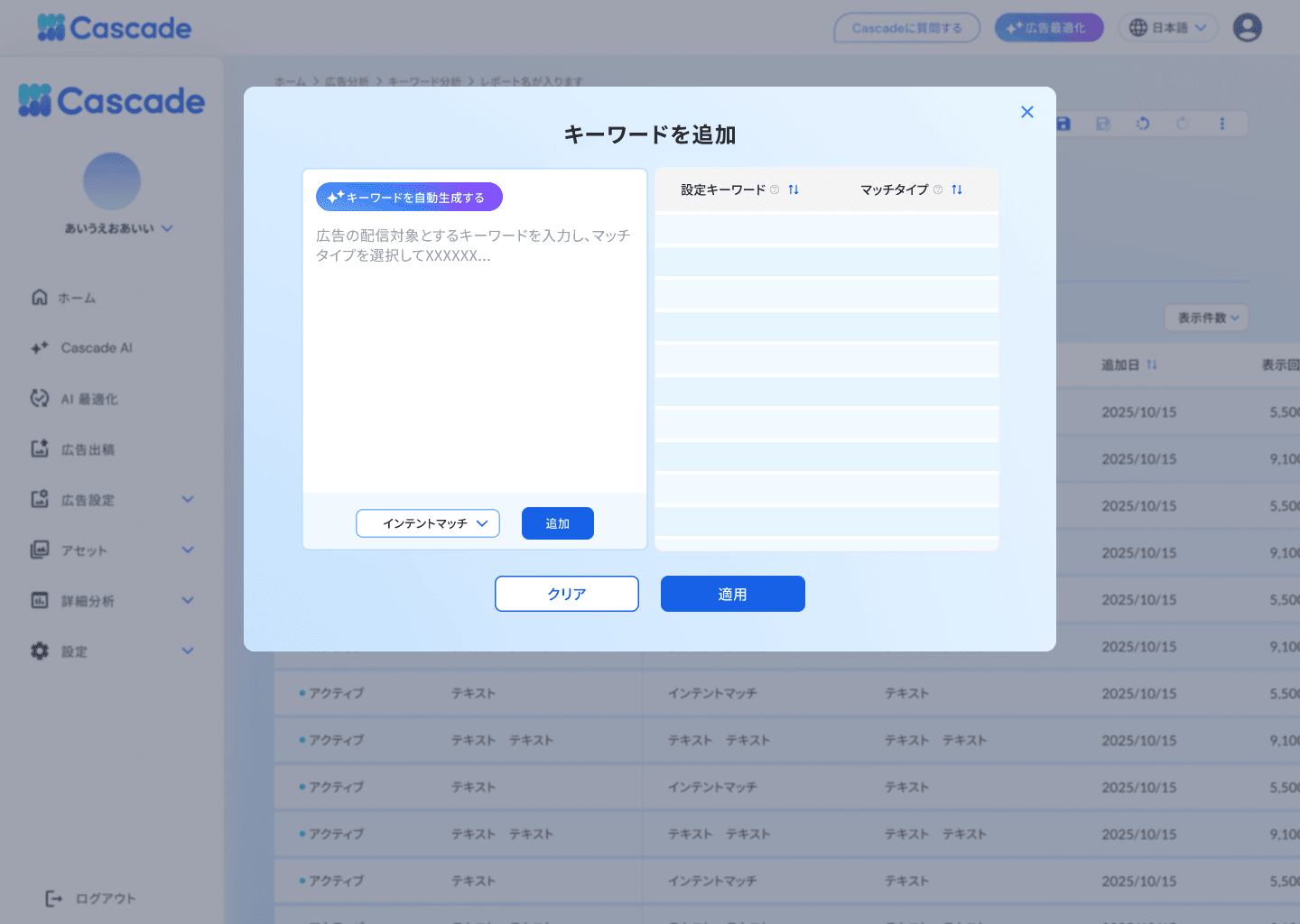
3. Press [Add]
The keywords and match types will be added to the list on the right side. You can add multiple keywords consecutively.
4. Press [Apply]
The entered keywords will be reflected in the media. If you want to reset the content, press [Clear].
Automatically Generate Keywords with AI
1. Press [Add Keywords]
The "Add Keywords" dialog will be displayed.
2. Press [Automatically Generate Keywords]
The screen "Automatically generates optimal keywords" will be displayed.
3. Enter each item in the analysis summary
Please enter the following items. The more detailed the input, the more accurate the generated keywords will be.
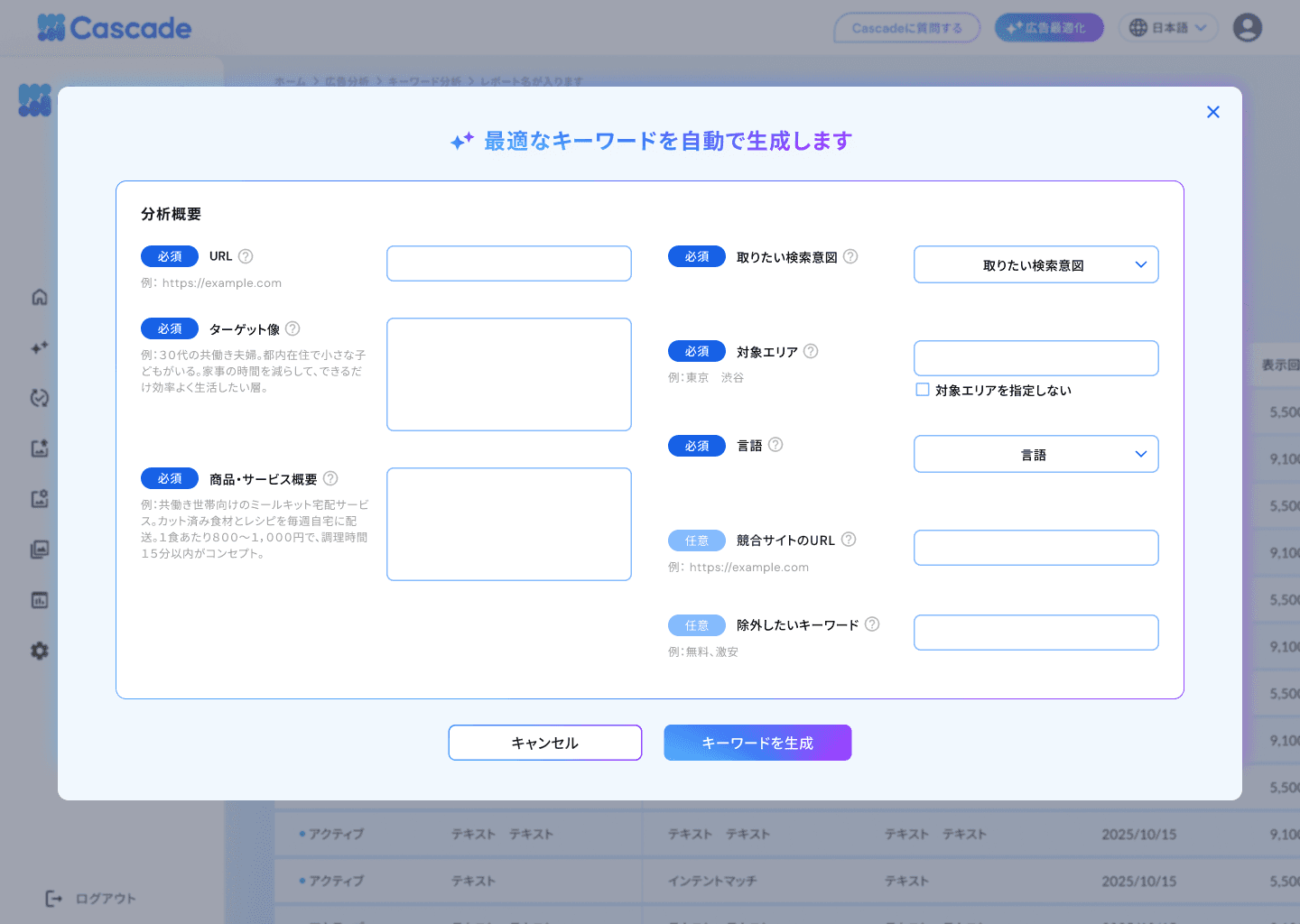
Item | Required / Optional | Content |
|---|---|---|
URL | Required | URL of the brand or service (e.g.: https://example.com) |
Target Profile | Required | User profile targeted by the advertisement (e.g.: Dual-income couples in their 30s living in Tokyo with small children. Aiming to reduce household chores.) |
Product/Service Overview | Required | Description of the product or service being advertised |
Desired Search Intent | Required | Select from information gathering, comparison, purchase (inquiry) |
Target Area | Required | Area where advertisements will be delivered (e.g.: Tokyo, Shibuya) |
Language | Required | Language for delivering the advertisement |
Competitor Site URL | Optional | URL of the site to be referenced as a competitor |
Keywords to Exclude | Optional | Keywords to exclude from generation (e.g.: free, bargain) |
4. Press [Generate Keywords]
AI will generate keywords and they will be displayed in the right list of the "Add Keywords" dialog.
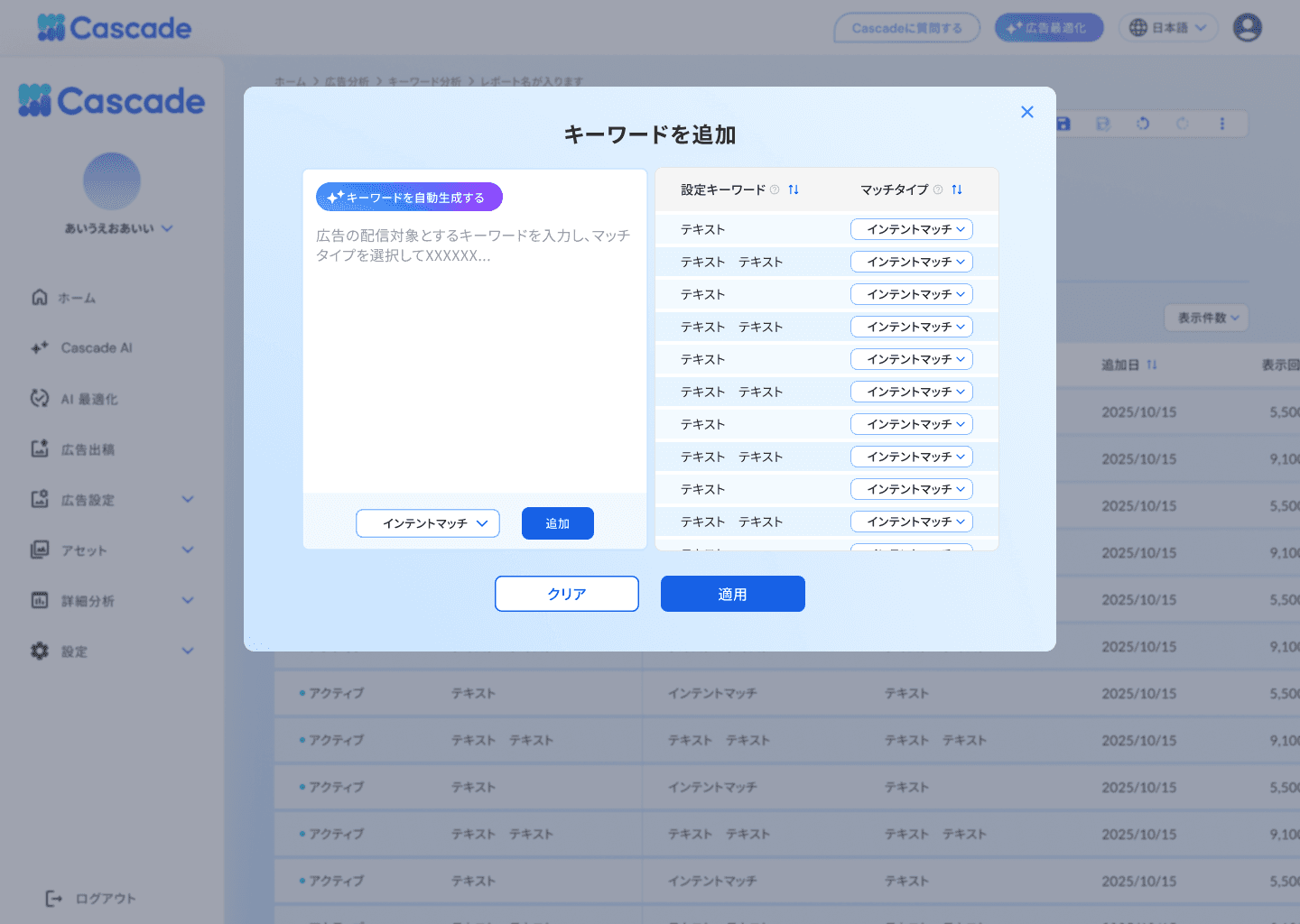
5. Review the content and press [Apply]
The generated keywords will be reflected in the media.