Please enter a keyword
Generate advertisement images
Create still image or video ad creatives in Cascade for banners, social posts, and more, then move straight to publishing from the same screen.
Author: Cascade
In ad image generation, you can automatically generate multiple layout patterns by simply inputting product images and logos.
You can quickly prepare multiple creatives needed for A/B testing while keeping design costs down, allowing for smooth advertising operations.
Operation Steps
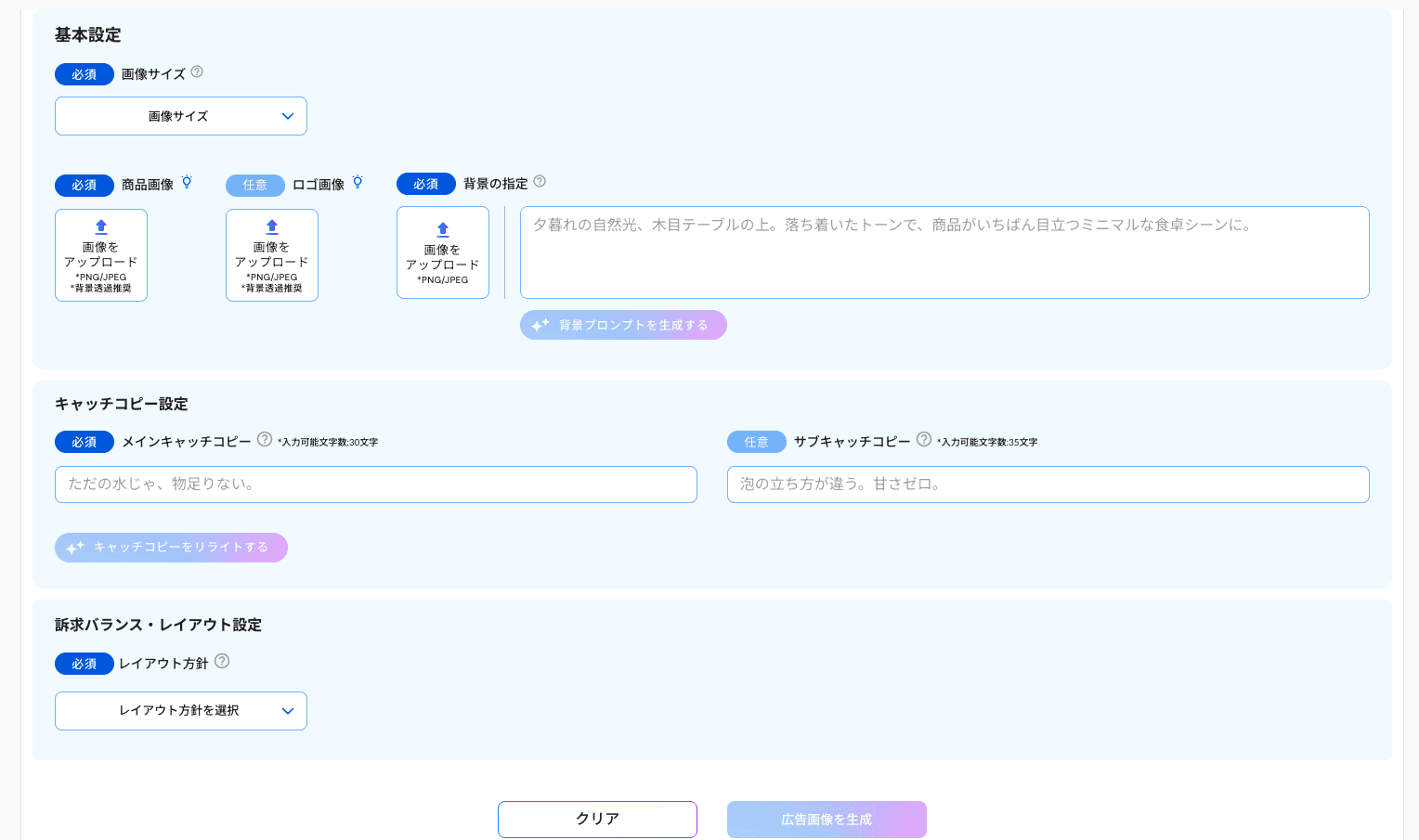
1. Enter Basic Settings
Set the following items.
Item | Required | Description |
|---|---|---|
Image Size | Required | Choose the size of the generated image. Please refer to "Image Generation Sizes and Specifications" for supported sizes. |
Product Image | Required | Upload the product image to be used in the advertisement. Supports PNG and JPEG. Background transparent images are recommended. |
Logo Image | Optional | Upload your brand logo. Supports PNG and JPEG. Background transparent images are recommended. |
Background Specification | Required | Input the background image description in text. Using "Generate Background Prompt" will allow AI to automatically create the text. |
2. Enter Catchphrase
Item | Required | Description |
|---|---|---|
Main Catchphrase | Required | Enter the main copy of the advertisement. Up to 30 characters. |
Sub Catchphrase | Optional | Enter a copy that supplements the main one. Up to 35 characters. |
After entering, if you use "Rewrite Catchphrase," AI will suggest improved candidates based on your input.
3. Select Layout Policy
Select the layout policy in "Appeal Balance/Layout Settings." The design balance of the generated image will change according to your selections.
4. Generate Ad Image
Clicking "Generate Ad Image" will automatically create multiple patterns of ad images.
If you want to reset the input, please click "Clear."
More articles in this category