
Please enter a keyword
Member management
Learn how to invite, change permissions for, and remove team members, plus see what each role—Owner, Admin, Editor, Viewer, and Guest—can access.
Author: Cascade
Manage Members
In member management, you can invite users utilizing Cascade and manage their permissions. You can set permissions based on roles and control the range of features available.
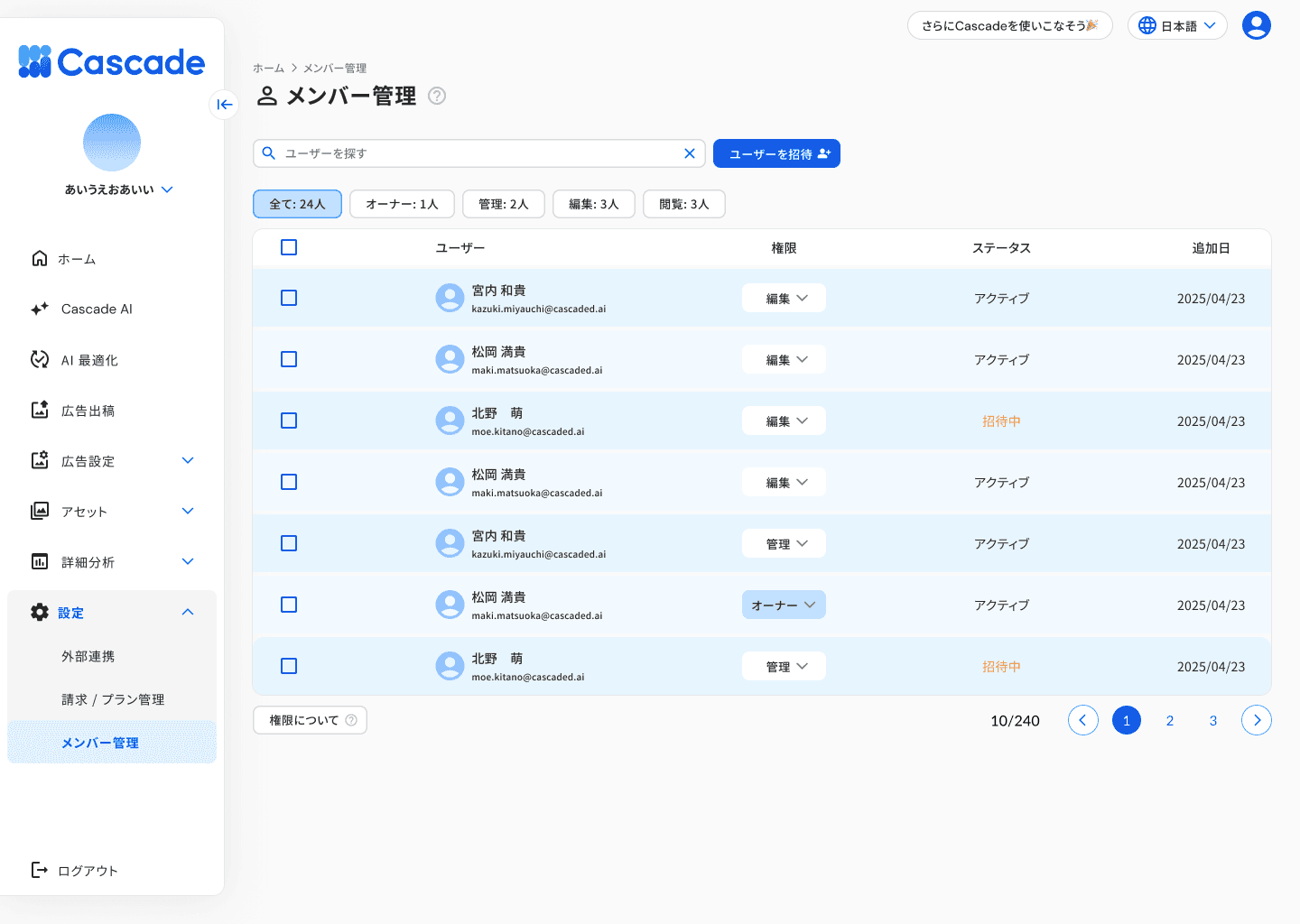
Invite Users
1. Select [Settings]>[Member Management]
The member management screen will be displayed. You can check the current member list and each user's permissions, status, and addition date.
2. Press [Invite User]
The "Add User" dialog will be displayed.
3. Enter the email address of the user to invite
Once entered, the corresponding user information will be displayed in "Users to Add".
4. Select the permissions to grant
Select either Owner, Administrator, Editor, or Viewer. For features available with each permission, please refer to "Features Available by Permission".
5. Press [Add User]
An invitation email will be sent. Users who are invited will have their status displayed as "Pending Invitation". Once the invitee accepts the invitation, their status will change to "Active".
![5. Press [Add User]](https://framerusercontent.com/images/V7cY09TEmfD2cWirrLpV2TG4nQ.png)
Change User Permissions
1. Press the permission dropdown of the user you want to change in the member list
Options for Owner, Administrator, and Viewer will be displayed.
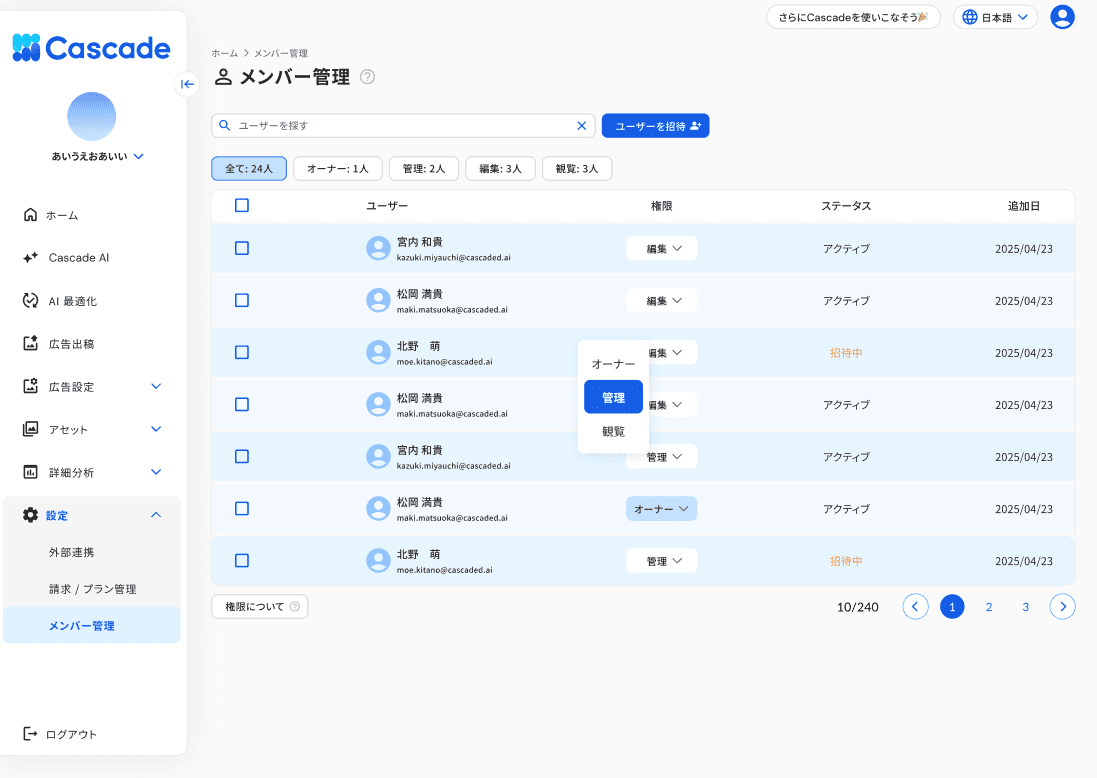
2. Select the new permissions
The "Change Permission" dialog will be displayed. Confirm the changes.
Changing permissions to Administrator will allow that user to manage the permissions of other members. Changes in permissions will take effect immediately.
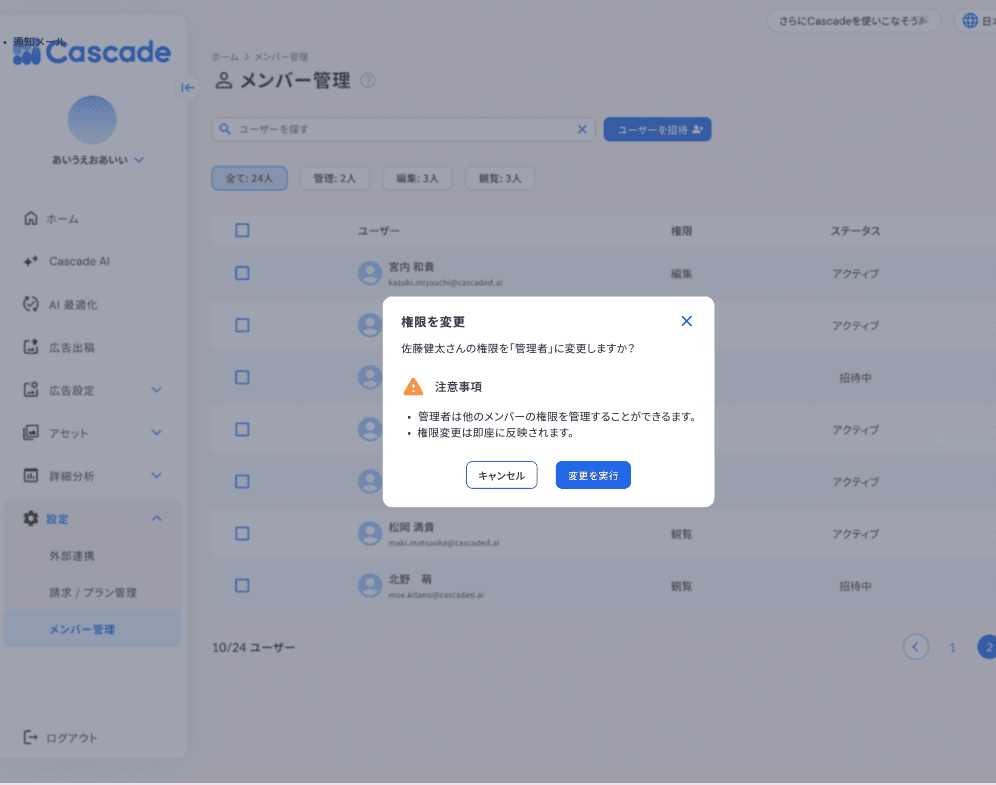
3. Press [Execute Change]
The changes in permissions will be reflected. If you wish to cancel the change, press [Cancel].
Features Available by Permission
The features available for each permission are as follows. You can also check it from [About Permissions] at the bottom of the member management screen.
Feature | Owner | Administrator | Editor | Viewer |
|---|---|---|---|---|
Delete Product | ✓ | ✓ | — | — |
Product Settings & Member Management | ✓ | ✓ | — | — |
View & Change Plan/Billing Information | ✓ | ✓ | — | — |
Place Ads & Change Ad Settings | ✓ | ✓ | ✓ | — |
Generate Ad Images | ✓ | ✓ | ✓ | — |
External Integration & Event Settings | ✓ | ✓ | ✓ | — |
Run AI Optimization | ✓ | ✓ | ✓ | — |
Cascade AI | ✓ | ✓ | ✓ | — |
Library | ✓ | ✓ | ✓ | ✓ |
Ad & Web Analytics | ✓ | ✓ | ✓ | ✓ |
Ad & web analytics will have viewing permissions based on the publication settings of each report.
More articles in this category