
Please enter a keyword
Invoice management
In Billing / Plan Management, you can check your current subscription plan, purchase AI credits, change your payment method, and review your billing history.
Author: Cascade
Billing / Plan Management
In billing / plan management, you can check your current contract plan, purchase AI credits, change payment methods, and review your billing history.
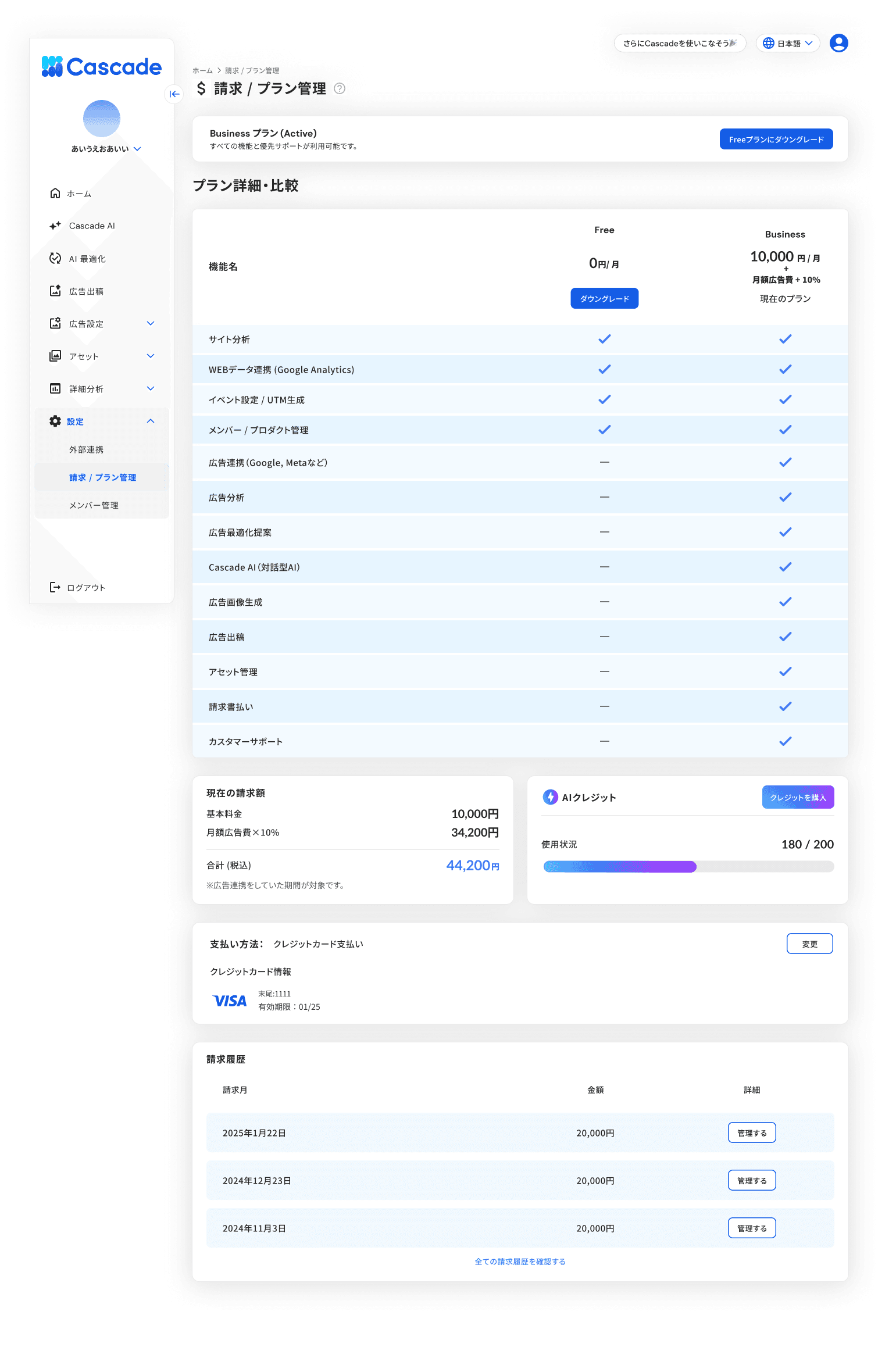
Available Plans
Cascade offers the following two plans.
Features | Free | Business |
|---|---|---|
Price | 0 yen/month | 10,000 yen/month + 10% of monthly advertising costs |
Site Analysis | ✓ | ✓ |
Web Data Integration (Google Analytics) | ✓ | ✓ |
Event Settings / UTM Generation | ✓ | ✓ |
Member / Product Management | ✓ | ✓ |
Advertising Integration (Google, Meta, etc.) | — | ✓ |
Advertising Analysis | — | ✓ |
Advertising Optimization Suggestions | — | ✓ |
Cascade AI (Conversational AI) | — | ✓ |
Advertising Image Generation | — | ✓ |
Advertising Placement | — | ✓ |
Asset Management | — | ✓ |
Invoice Payment | — | ✓ |
Customer Support | — | ✓ |
The monthly fee for the Business plan consists of the base fee of 10,000 yen plus an additional 10% of the monthly advertising costs incurred during the period of advertising integration.
Check Current Billing Amount
In the "Current Billing Amount" section of the billing / plan management screen, you can check the base fee, 10% of the monthly advertising costs, and the total amount (including tax).
About AI Credits
AI credits are consumed when utilizing AI features such as advertising image generation.
Fifty credits are given for free each month. Credits will be consumed from the free allocation first. If the free allocation is exhausted, purchased credits will be used. Purchased credits can be carried over to the following month. Generating an advertising image consumes 1 credit per image.
Purchase AI Credits
Press [Purchase Credits] in the "AI Credits" section of the billing / plan management screen
A "Payment Confirmation" dialog will appear, allowing you to check your current credit usage status.
Select the number of credits to purchase
You can purchase from 50 credits.
Press [Purchase]
Purchased credits will be added instantly.
Change Payment Method
Press [Change] in the "Payment Method" section to modify your registered credit card information.
Check Billing History
In the "Billing History" section, the billing month, amount, and details will be displayed in a list. Press [Manage] for each row to see the details of the billing. To view all past bills, press [Check All Billing History].
More articles in this category