Please enter a keyword
What is ad image generation?
Upload product images and catchphrases, then let AI create ad images instantly. Choose multiple layouts, download results, or generate extra sizes.
Author: Cascade
In the advertisement image generation, you only need to input information such as product images and catchphrases, and the AI will automatically generate images for advertisements. You can select multiple layout patterns to generate several images at once, and after generation, you can download them as they are or generate additional variations with different sizes.
1. Select [Assets] > [Advertisement Image Generation]
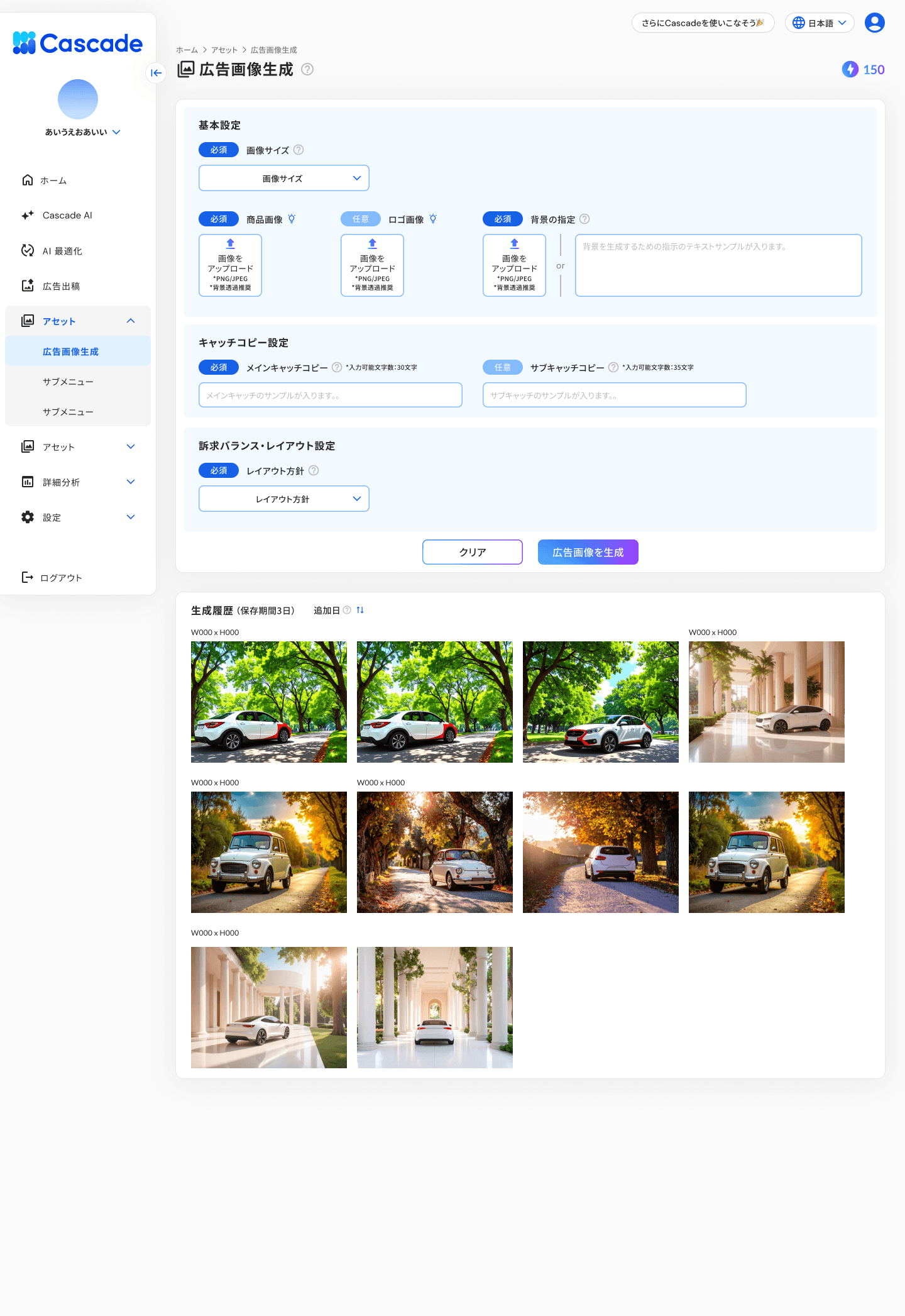
The advertisement image generation screen will be displayed.
2. Input the basic settings
Set the following items.
Item | Required/Optional | Content |
|---|---|---|
Image Size | Required | Select the size of the image to be generated from the list. |
Product Image | Required | Upload the image of the product to be used in the advertisement. Supports PNG and JPEG formats. It is recommended to use a background-transparent image. |
Logo Image | Optional | Upload the brand logo image. Supports PNG and JPEG formats. It is recommended to use a background-transparent image. |
Background Specification | Required | Upload a background image or input a text description of the background image. |
3. Input the catchphrase
Input the following items.
Item | Required/Optional | Content |
|---|---|---|
Main Catchphrase | Required | Input the main catchphrase for the advertisement. You can input up to 30 characters. |
Sub Catchphrase | Optional | Input the sub-catchphrase. You can input up to 35 characters. |
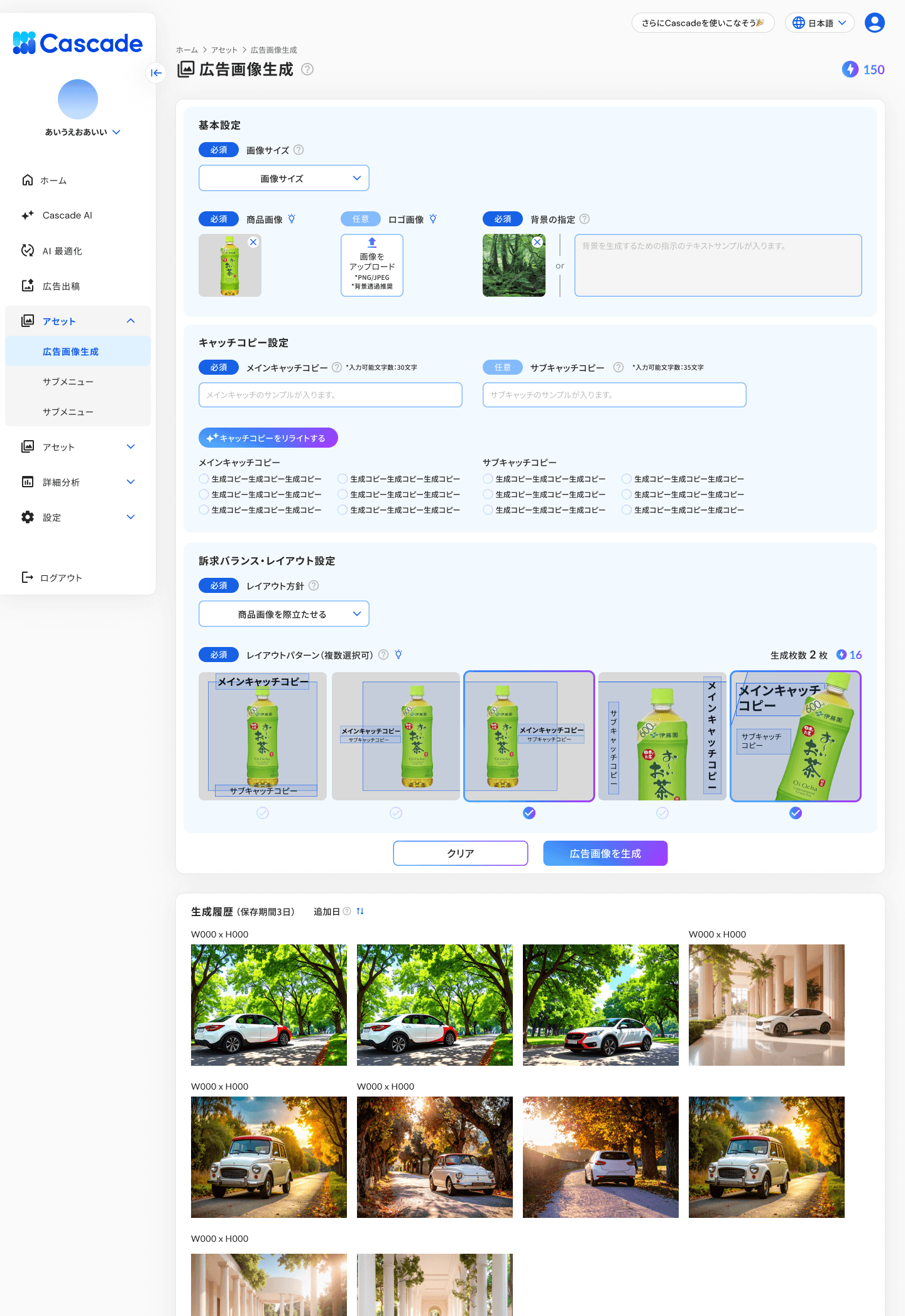
When you enter the main catchphrase, the [Rewrite Catchphrase] button will be displayed. Pressing it will generate multiple catchphrase options using AI, allowing you to select the one you want to use.
4. Set the appeal balance and layout
Set the following items.
Item | Required/Optional | Content |
|---|---|---|
Layout Policy | Required | Select the appeal balance for the entire image from the list. (Example: Highlight the product image) |
Layout Pattern | Required | Select the layout pattern for the images to be generated. You can select multiple options, and the number of generated images will increase according to the number of selections. |
5. Press [Generate Advertisement Image]
"Generating image..." will be displayed, and the generation will begin. Once generation is complete, the generated images will be added to the generation history at the bottom of the screen.
![5. Press [Generate Advertisement Image]](https://framerusercontent.com/images/FdV7b6i4M2gNaObU3obZ82o5k.png)
The storage period for the generation history is 3 days.
![5. Press [Generate Advertisement Image]](https://framerusercontent.com/images/SXb2eblPZFpYYEhAGrprLwQmIS4.png)
Utilize the generated images
When you select an image from the generation history, it will be displayed in an enlarged view. The following operations can be performed from the menu at the bottom of the screen.
Operation | Content |
|---|---|
Download | Download the displayed image. |
Resize Generation | Generate an image of a different size with the same design. You can select the size from the list and specify multiple sizes by using [Add Size]. |
Create Variation | Generate design variations based on the displayed image. |
Regenerate | Regenerate the image with the same settings. |
Details | You can check the settings used during generation (image size, product image, catchphrase, layout, etc.). |
More articles in this category